
Beyond the "Like": How to Get Your Audience to Save Your Carousels (The Real Holy Grail)
Published June 24, 2026 by David
I test LinkedIn posts every day. Here’s the truth: A like is just a polite nod. A comment sparks a conversation that engages your network. But a Save for Later? That’s your prospect winking at you—"You nailed it. Keep this in my personal library."
For the algorithm, it’s a goldmine. Your reach skyrockets because LinkedIn sees your content is worth keeping. But not just any post triggers this.

A meme or a joke—even a good one—won’t get that ribbon click. To earn saves in B2B, you need content that’s ultra-digestible and ultra-useful. The kind your reader will revisit in two weeks because they know they’ll need it.
Here are the 3 formats that deliver:
- The "Cheat Sheet": A clean list of tools or prompts. Example: "10 Best ChatGPT Prompts for SEO"—something marketers will want to keep handy.
- The Step-by-Step Process (SOP): A method broken into clear steps to solve a specific problem. Like "How to Audit Your Website in 5 Steps"—perfect for techs and consultants.
- The Checklist: "5 Items to Verify Before Signing Your Quote"—the kind of post that saves deals.
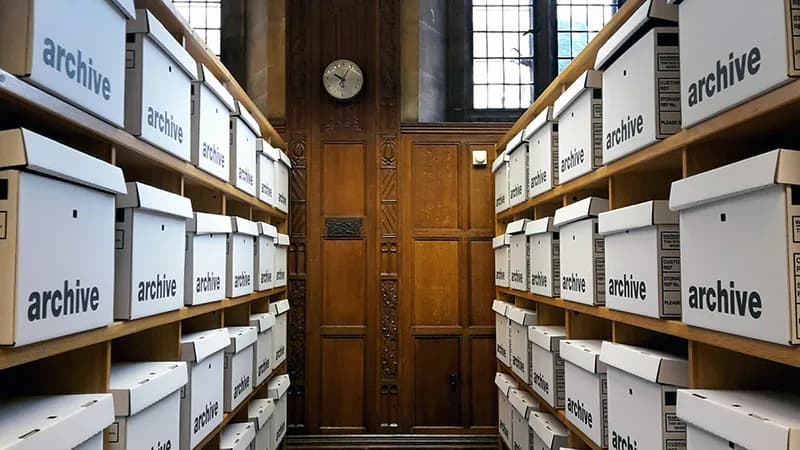
But even with killer content, if your design looks like a wall of text, no one will save it. LinkedIn is visual first. For your cheat sheet to feel worth archiving, it needs to breathe.
Use typographic bullet lists to break up ideas. Add white space around key blocks. A clean post feels premium—and premium gets saved.
Then, don’t assume your readers know they should click the ribbon. Tell them explicitly. Ditch weak CTAs like "Like if you agree." Instead, say:
"You won’t remember all this at once! Click the small ribbon in the top right to save this checklist and find it tomorrow."
To make it even easier, add a screenshot of the save icon on your last slide. Less friction, fewer excuses.
IMAGE_2
Now, the big problem: Creating these visuals manually is a pain. You have to align 15 checklist items on a slide, respect safe zones, and still keep it professional? Eventually, you’ll quit.
That’s where CarouselCraft comes in. Paste your checklist or recommendations into the tool, and boom:
- The engine centers your elements automatically.
- It calibrates spacing.
- It applies pro colors.
- It ensures perfect contrast.
Result? Your content looks like a document ready to be archived. No need to spend 2 hours on Canva.
👉 Design visual resources your market will want to keep with CarouselCraft
Les illustrations de ce blog sont généreusement mises à disposition par les photographes d' Unsplash.